Start Guide
This guide takes you from an empty workspace to a first graph: create a case, add an entity, enrich it, and add the results you want to keep.
Create a case
A case holds the entities and links for one investigation.
Click New case, enter a Case name, and click Create.
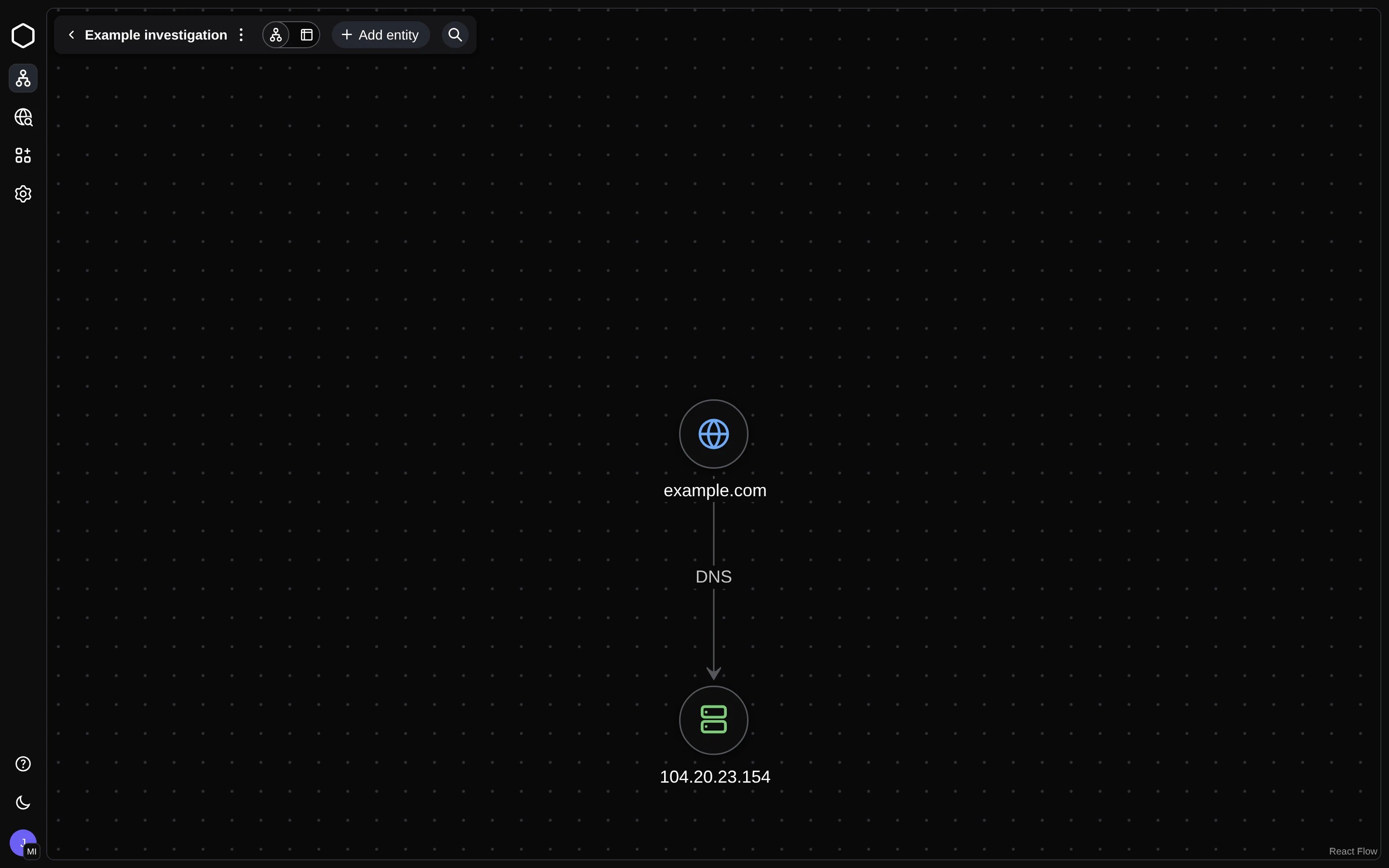
The case opens in graph view. Use the two icons next to the case name to switch between graph and table view. ⋮ opens the case menu.
Add an entity
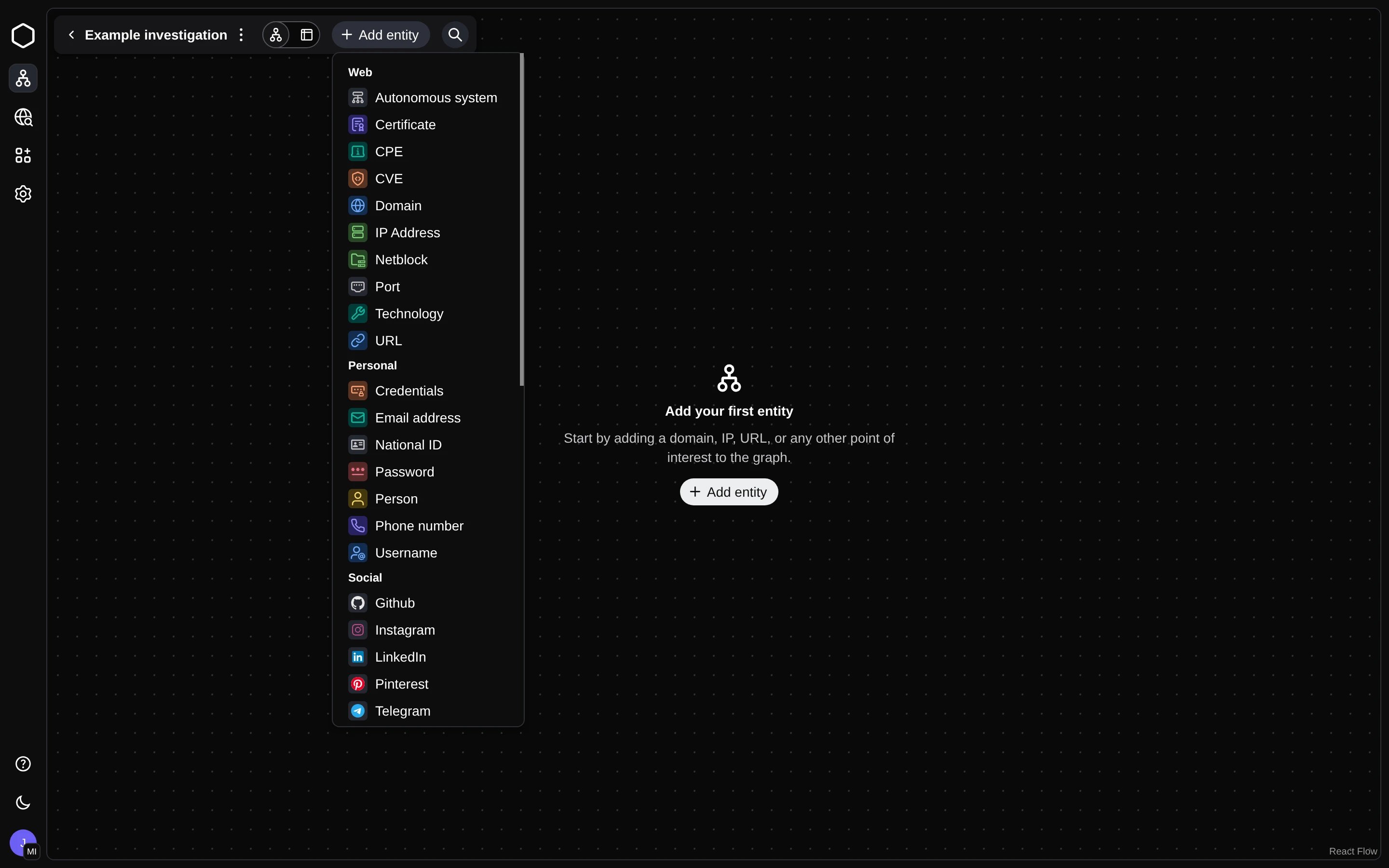
Click Add entity and pick a type, such as Domain. Type the value, for example example.com, and press Enter. The entity's panel opens on the right.
Enrich it
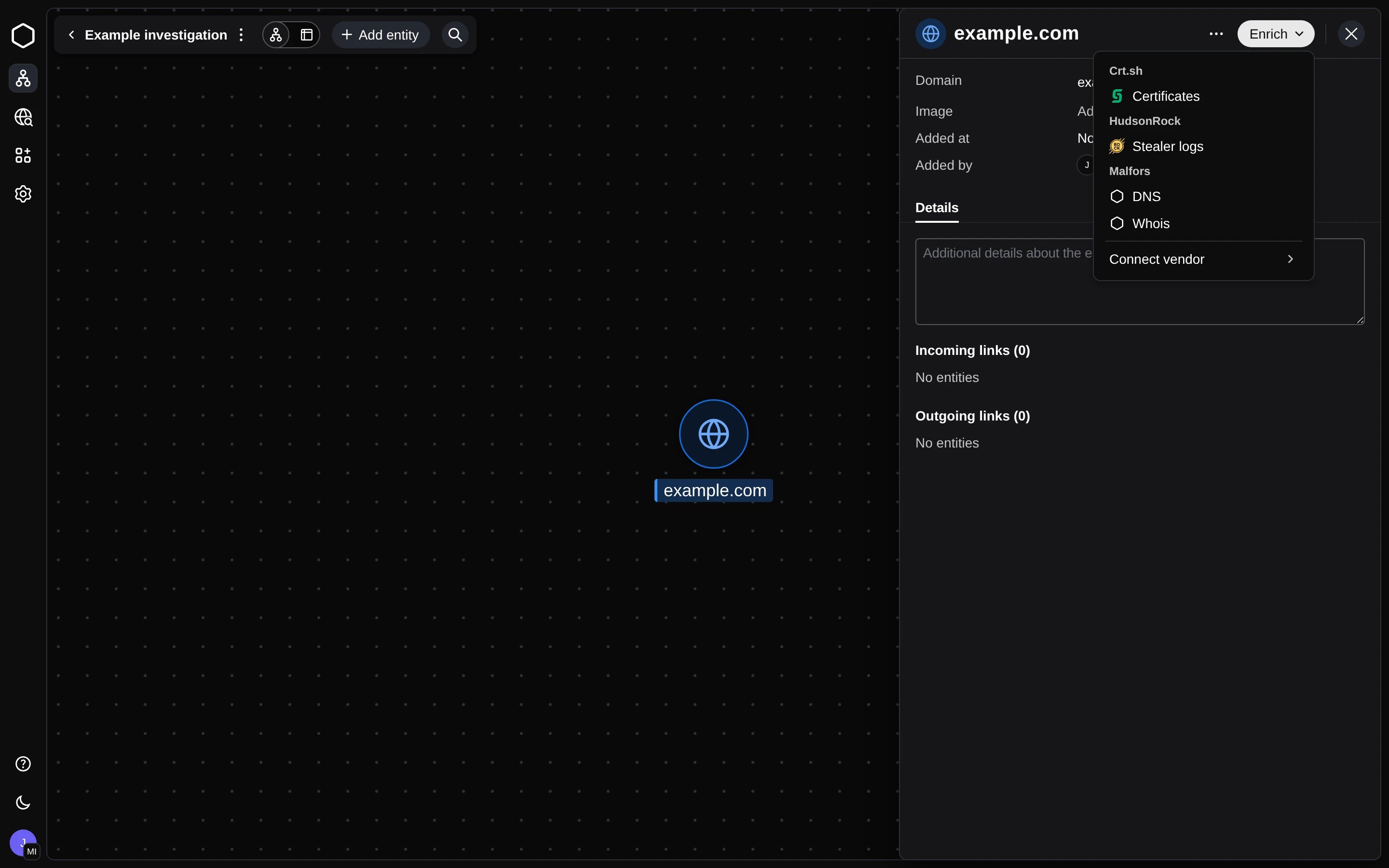
In the entity panel, click Enrich and pick an enrichment. Enrichments are grouped by vendor. For a domain, the Malfors group has DNS and Whois.
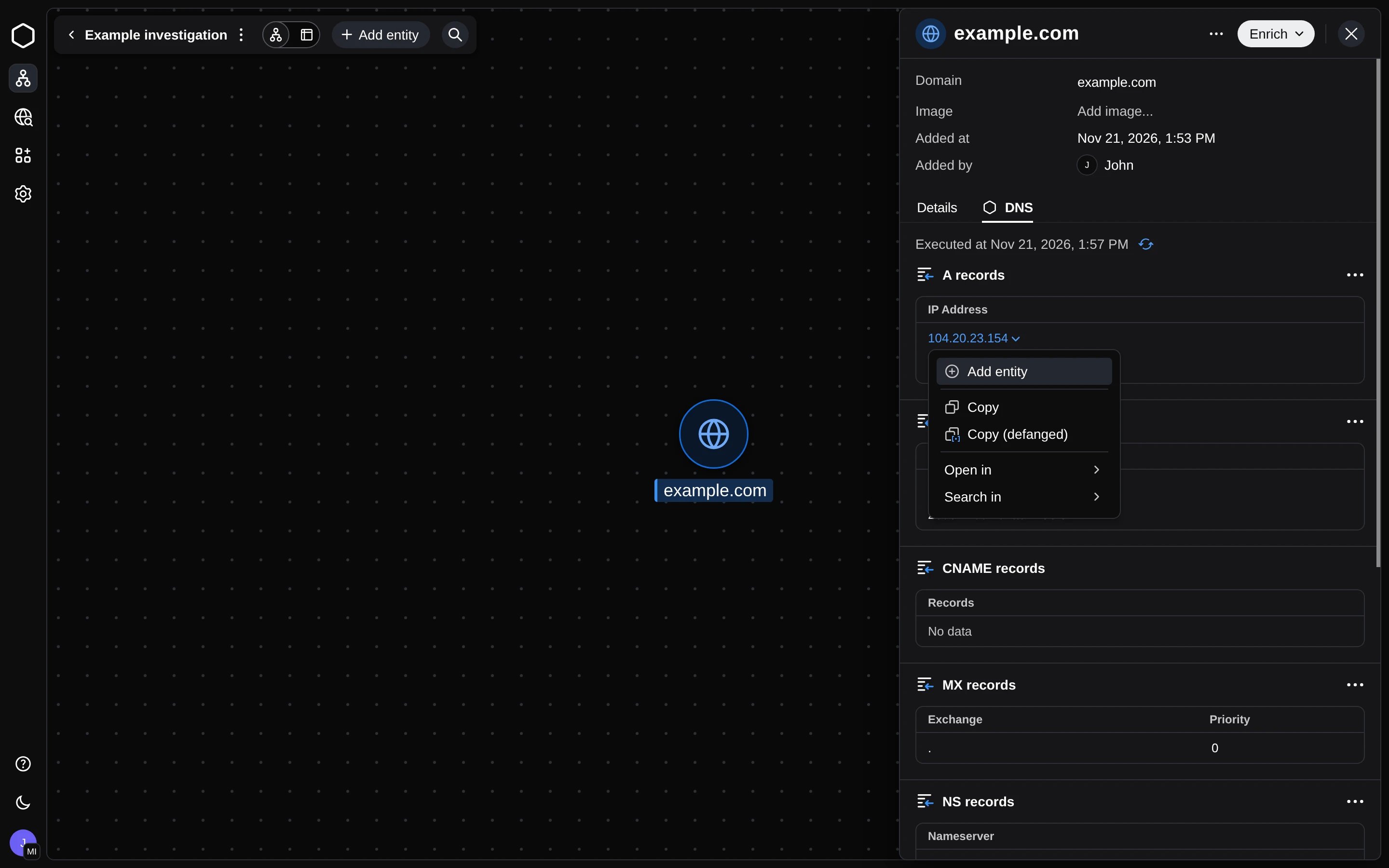
Results open in a new tab in the panel. DNS returns A, AAAA, CNAME, MX, and NS records.
Review the results
Enrichment results are not added to the graph automatically.
Click a value to open its menu, then click Add entity. The menu also has Copy, Copy (defanged), Open in, and Search in.
The entity is added to the graph and linked to the entity you enriched. Here, the IP address is linked to example.com by a DNS link.
What's next
An investigation grows by repeating this loop. Enrich the new IP address, add what stands out, and continue from there. As the graph grows:
- Run more enrichments on each entity. Connect vendor in the Enrich menu adds more sources, and Private Enrichments let you plug in your own.
- Look for entities that show up in more than one result. Shared infrastructure, emails, or registrants usually connect the pieces.
- Switch to table view to scan every entity and its links, and use search in the case bar to jump to an entity.
Concepts covers how cases, entities, links, and enrichments fit together.